·3 min·Andreas Haerter·
Using the ATEN CV211 (all-in-one KVM adapter) with Fedora Linux
The ATEN CV211 is an all-in-one KVM (Keyboard, Video, Mouse) adapter that turns your laptop into a KVM console, combining the functionality of a wormhole switch, capture box, external DVD-ROM, keyboard, mouse, and monitor, all in one compact and convenient unit. I really like the hardware in daily operations, especially when I have to a takeover new environments with “historically grown” cabling. It is nice to have the ability to get the screen and keyboard control of a yet unknown server without hassle—all with a small USB adapter in your backpack:
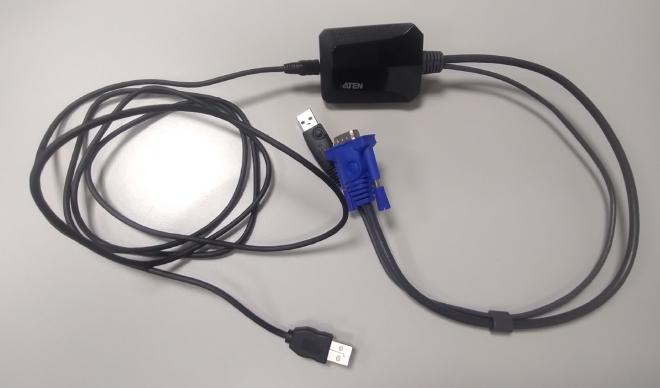
If you connect the adapter, you’ll get a 10 MiB drive mounted with the following contents, containing a Microsoft Windows Client WinClient.exe (basically a Runtime Environment and wrapper) and the real application JavaClient.jar:
$ ll
total 9,1M
drwxr-xr-x. 2 user user  16K  1. Jan 1970  .
drwxr-x---+ 3 root root   60 30. Apr 19:08 ..
-rw-r--r--. 1 user user 3,7M 30. Dez 2019  JavaClient.jar
-rw-r--r--. 1 user user 2,0M 30. Dez 2019  Vplayer.jar
-rwxr-xr-x. 1 user user 3,5M 30. Dez 2019  WinClient.exe
The “login failed” problem
The JavaClient.jar KVM console is mostly the same as ATEN uses for all their IP KVM stuff. They just bind the service to some high port on localhost and use the hardcoded credentials -u administrator -p password to connect (which is obvious in several places):

Sadly, the Java application is not able to run out-of-the-box on a Fedora 40 Linux with OpenJDK / Java SE. The application will start but sometimes does not even list the device. And if there is a device to connect to, the login will fail:

The JavaClient.jar will not be able to connect with any supported OpenJDK or Azul Zulu Java RE:
# incompatible Java version :-(
$ java -version
openjdk version "17.0.9" 2023-10-17
Solution: Oracle JDK 7
For anybody having the same problem, the following should help:
- Use a copy of the Oracle JDK 7 (the patch level does not matter) and the application will work without flaws.1
- Make sure the current working directory is the USB mount point so the
.jarfiles are in./.
For example, if you just extract jdk-7u80-linux-x64.tar.gz to /tmp, you can use the application as follows:
tar -xvf jdk-7u80-linux-x64.tar.gz -C /tmp
cd /run/media/user/disk # or wherever the ATEN CV211 storage was mounted
sudo /tmp/jdk1.7.0_80/bin/java -jar ./JavaClient.jar
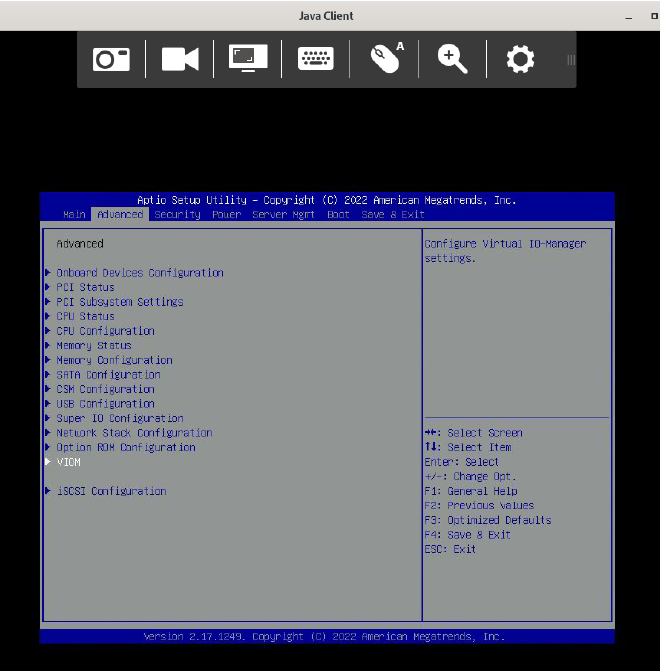
You can download the Oracle JDK 7 from https://www.oracle.com/de/java/technologies/javase/javase7-archive-downloads.html, but keep in mind to check the license conditions, especially if you are operating in a commercial environment.
If the problem persists…
Sometimes, the “login failed” error occurs even when following the procedure described above (i.e., when using Oracle Java and the current working directory is the mount point). I have not yet been able to determine the exact cause of these (rare) cases. However, this behavior has never occurred during operation but only during the first use. In such cases, a reboot of the hardware by unplugging and reconnecting it to the USB port always helped.
Do not use this old, unpatched Java RE for anything else because of known security vulnerabilities. ↩︎